Tuesday, March 11, 2014

How to enable approval of content by an administrator in Drupal 7

Today, I'm going to show you that how to restrict a user from directly publishing their content on web page using content approval.
Content Approval is used to enable the approval of a content (node) by an administrator prior its publication.

Here are the steps to do:
  • Go to Drupal site & download the module named content approval.
  • Next, login to your admin control panel.
  • If you want to put restrictions to all contents for like Article, Basic Page, Poll Forum etc. you can do that individually.
  • Here I m going to tell you about Article part.
  • Go to Admin --> Structure -->Content Types. You will find a list of names for those you want to put restrictions to user. see the below screenshot:


  • Find Article in that list, Click on edit under Operations on right side.
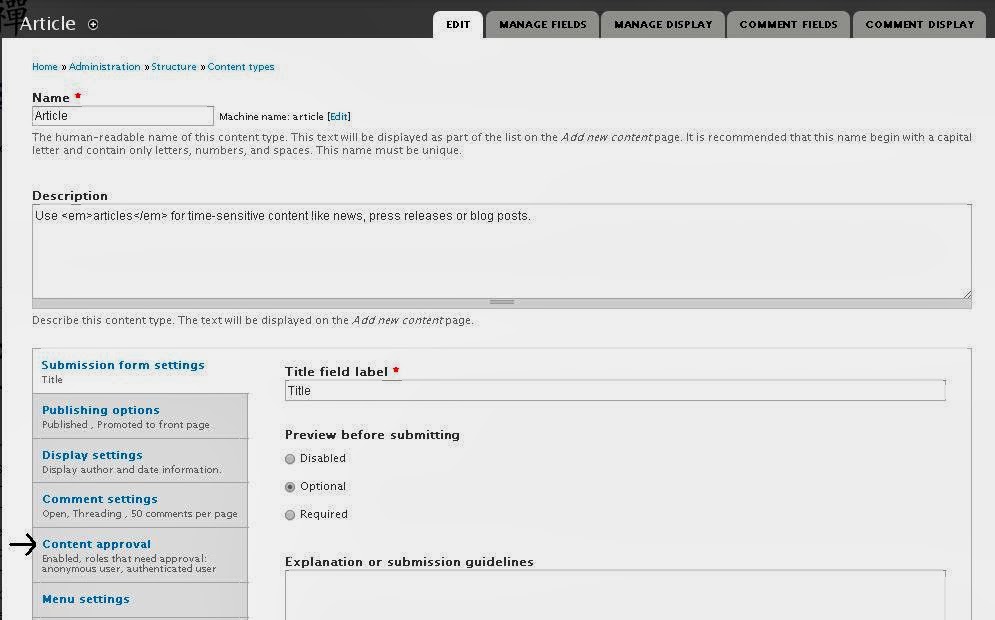
  • After clicking on edit link, You'll see something like this:


  • After that,Click on Content approval tab as shown in above Screenshot. 
  • then enable that feature by checking that field. save it & clear the cache.
  • Finally tell to which role the feature must apply by adjusting the permissions at the Admin » People » Permissions page.
  • now add content and check if this kind of message is coming or not.

Monday, March 10, 2014

Ubuntu stores your Wi-Fi passwords, by default!

Ubuntu is not as secure as you perhaps thought it to be. According to reports, the Linux-driven distribution stores its Wi-Fi profiles outside its Home folder, which makes them more accessible. This includes passwords for the Wi-Fi profiles. Reports say that a user pointed out that Wi-Fi passwords on Ubuntu aren’t encrypted as they are stored outside the Home folder. This folder, though, can be encrypted during the OS’ installation. “I recently stumbled over the fact that NetworkManager, by default, stores Wi-Fi profiles ‘including clear text passwords’ under /etc/NetworkManager/systemconnections/.

I think that this is not what one expects when one turns on Home folder encryption and because of that, this should be corrected somehow,” Softpedia quoted user Per Guth from a mailing list.
The issue is apparently a result of the option, ‘All users may connect to this network’, that is enabled by default. In order to switch this feature off, users have to open the Network Indicator and go to Edit Connections. Then choose Select Network and click on Edit. In the General tab here, uncheck the option in order to switch it off.

Unchecking the option reportedly moves the password into the required folder, but the Softpedia report speculated that the majority of users wouldn’t be aware of this issue. Whether Canonical will make any changes to this or not remains to be seen.

Friday, March 7, 2014

How to change to Search Friendly URL In Drupal 7

If you see a website link like this http://yourdomain.com/node/83, it is 99.99% powered by Drupal. The link pattern of node/[number] is the default pattern of Drupal content links. However, if it looks like http://yourdomain.com/about-us, it will look more readable to human being.
Drupal has a feature called "URL Alias" that allows you to provide a more understandable name to the content.

Here are the Steps:
  • Login to your Admin Control Panel.
  • go to Admin --> Configuration . Under SEARCH & METADATA Block, Click on URL aliases option as shown below. 


  • Before going further,To check URL of Your Post Just Click on the Content which you created just now. after that,look at the addressbar & you will URL something like this:  http://localhost/drupal724/drupal-7.24/node/8


  • Now,open URL ALIASES menu. Click on Add alias Link in top.
  • There You'll Find Two Option.First is Existing System Path and Second is Path Alias.
  • Now, In the Existing Path Field, Enter The Default URL of POST which you recorded above in step-3 like node/8. 
  • Next,In Path Alias Field, Enter the URL of your Choice Related to your post. for example. If  your post title is about Drupal7 for Beginners then URL for that must be drupal7-for-beginners. 
  • Just Check the Below Screenshot for more Details:


  • That's it & You're done with it.now,You can see user Friendly URL's.


METHOD:2

  • You can also create Search Friendly URL'S while Creating content on a website like Article, Blogs, Basic page.
  • Go to admin --> Content --> Add Content --> Article
  • Fill the Required Information about Article. Navigate Down You will see "URL Path Setting" Tab.


  • Enter the URL alias as you did in Method -1 for node/8.
  • Save it and you're done.